Posts

Showing posts with the label Android

Get started with Appium for Android & Cucumber-JVM using quick reference book

Image
TestVagrant Technologies has released two free Ebooks on Gitbook.io and couple of projects in github which can help you get started with Appium and Cucumber-JVM. Both the books are for beginners and have detailed steps on how to set-up and goes till how to execute your first test. We did find lack of good documentation on both the subject in terms of starting up so we tried putting one hand book for the same. Happy Reading !!! Appium for Android A quick reference book on how to use Appium for automating Android Application using Java. This would detail each and every practical aspects right from setting up Appium to running the test on actual devices. Ebook link:  http://bit.do/TfhQ Github link:  https://github.com/testvagrant/AppiumDemo Building a Test Framework Using Cucumber-JVM This book talks about building a cucumber-jvm based functional test framework with selenium in the background. Ebook link:  http://bit.ly/1xrv1Oq Github link: ...
How to set up Calabash for Android App Testing

Calabash is an open source project for testing mobile apps. It's based on cucumber  so allows one to author test in business readable domain specific language. Calabash is available on Github . I have a machine running Mac OSX (version 10.8.2) and I will be detailing steps on how I installed Calabash and got my first test running. Couple of things which you would need before installing Calabash is : Xcode, Ruby and Android SDK.  I installed Homebrew which actually helped me upgrading the ruby to version 1.9.3 pretty easy. Once you install Xcode, you would have to install Xcode command line tools. This would be in  Xcode Preferences --> Downloads Tab, select the Command Line Tools and click on Install. Post the Xcode you would want to check the ruby version, you need 1.8.7 or higher. If you have brew installed then running " brew install ruby " would upgrade the ruby else if you have rvm installed then try running " rvm install 1.9.3 --with-gcc=c...

Testing Web application using AndroidDriver

This blog is mostly like a  “How to” post on testing web application using Eclipse IDE, JUnit and AndroidDriver. What all you need ? Eclipse (version 3.7), JUnit, selenium-server-standalone-2.15.0.jar and of course Android SDK. Before you do anything, you need to install Android Emulator on Windows, and then install WebDriver on that emulator: http://www.nishantverma.com/2011/06/installing-android-emulator-on-windows.html     http://www.nishantverma.com/2011/06/installing-webdriver-on-android.html Post the set up, you can refer below to download the sample test framework from Github to get started https://github.com/nishantverma/Android This is a test framework skeleton and can be leveraged for specific testing requirements.

Testing Web Application on Android Emulator using Twist 2.3

Image
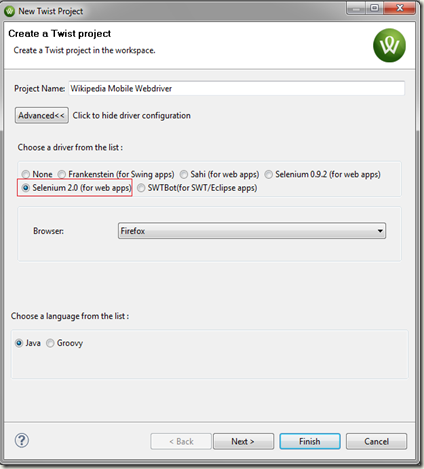
Twist 2.3 supports Selenium 2. So let’s take a sample mobile web application to Test. Application under Test: Wikipedia Mobile URL: http://mobile.wikipedia.org/ Let’s say the basic test scenarios we want to automate is Navigate to the URL Search for "Thoughtworks Studios" Open the link "Twist for Agile testing" Verify the link "ThoughtWorks" Let’s run through few steps which will enable us to do that. Step 1 : Create a new Twist project with Selenium 2.0 as underlying driver and Firefox as the browser and Click on Finish . Step 2 : On the New Scenario Page in Scenario Editor, create a new Business Workflow Step 3 : Start recording the steps. (This will help you record the test in Firefox.) Step 4 : Open the Project properties and Select the Twist Properties and click on the Selenium2 tab. Select Android Browser for the browser. Step 5 : Make sure the android emulator is running ( Webdriver Installed ) and pointing to the androi...

How to install Webdriver on Android Emulator on Windows

Image
Following my previous post, I needed to install Webdriver on Android Emulator .  I have Windows 7 installed and most of the instructions were for Linux, so I thought this might be helpful. So even this is pretty straight forward. Let’s run through the steps I followed to install Webdriver: Download “ android-server-2.0.2rc3.apk ” from the following location http://code.google.com/p/selenium/downloads/list . Copy the above downloaded file into folder “ C:\Program Files\Android\android-sdk\ platform-tools ” Run the “Command Prompt” as administrator . Execute “ cd C:\Program Files\Android\android-sdk\platform-tools ” Execute the command “ adb install  android-server-2.0.2rc3.apk ” We also need to set up Port forwarding, run the command “ adb forward tcp:8080 tcp:8080 " Click on the WebDriver app on Emulator and this will make the android server available at “ http://localhost:8080/wd/hub ”. Opening this URL in Firefox ...

How to install Android Emulator on Windows

Image
As part of my testing work, I am currently working on using webdriver to test on Android. So I had to install Android Emulator on Windows 7. Below are the sequential steps and I hope it will ease some pain on getting Android emulator on your Windows 7 box. Download the installer from http://developer.android.com/sdk/index.html Install it to a location (like: C:\Program Files\Android) Launch “SDK Manager.exe” It will launch a “Android SDK and AVD Manager”. By default “Installed packages” will be highlighted. On the pop up “Choose Packages to Install”, there will be some packages selected already. Go ahead with the “Install”. 4.    Once it is done, select “Virtual Devices” to create one for you. Click on “New” and enter some name. Target as “Android 2.2 – API Level 8”. Select Size as “512” and “ Built-in ” to be “WVGA854” and click on “ Create AVD ”. 5. Once done select the Virtual device you created and click on Start . You can find the “Start” button on t...